Goddess of Victory: NIKKE on Linux - a Step-by-Step Guide

Original credit goes to d-kja and her guide, who extensively researched and documented several methods over the past year.
Today, I'm showing you guys the method I used, chosen based on my personal preferences:
- Steam integration; already use Steam and can leverage Proton for most games.
- Prefer minimal installation, with the smallest footprint on Host system.
This method might also work better for you, if you have similar specs to mine:
- Ubuntu 24.04
- Intel i7-6700K
- NVIDIA GTX 1070
- GNOME on Wayland
A note on Personal Responsibility
Technically speaking, running NIKKE on Linux is against the Terms of Service. Please do not engage in any kind of client-side modifications, keyboard/mouse macros, or packet manipulation that will draw any attention to your gameplay and account.
If you get caught running shenanigans and cause SHIFT UP to crack down harder on the game running via Wine/Proton, you will ruin it for the rest of us who just want to play normally without relying on Microsoft Windows.
System Prerequisites
Assumed that Steam is already installed.
Flatpak with Flathub
-
Install Flatpak
sudo apt install flatpak -
Add the Flathub repository
flatpak remote-add --if-not-exists flathub https://dl.flathub.org/repo/flathub.flatpakrepo -
Restart your system to ensure Flatpak integrates with the desktop environment.
ProtonPlus
-
Install ProtonPlus
flatpak install flathub com.vysp3r.ProtonPlus -
Select Steam as the target launcher if the installer asks.
-
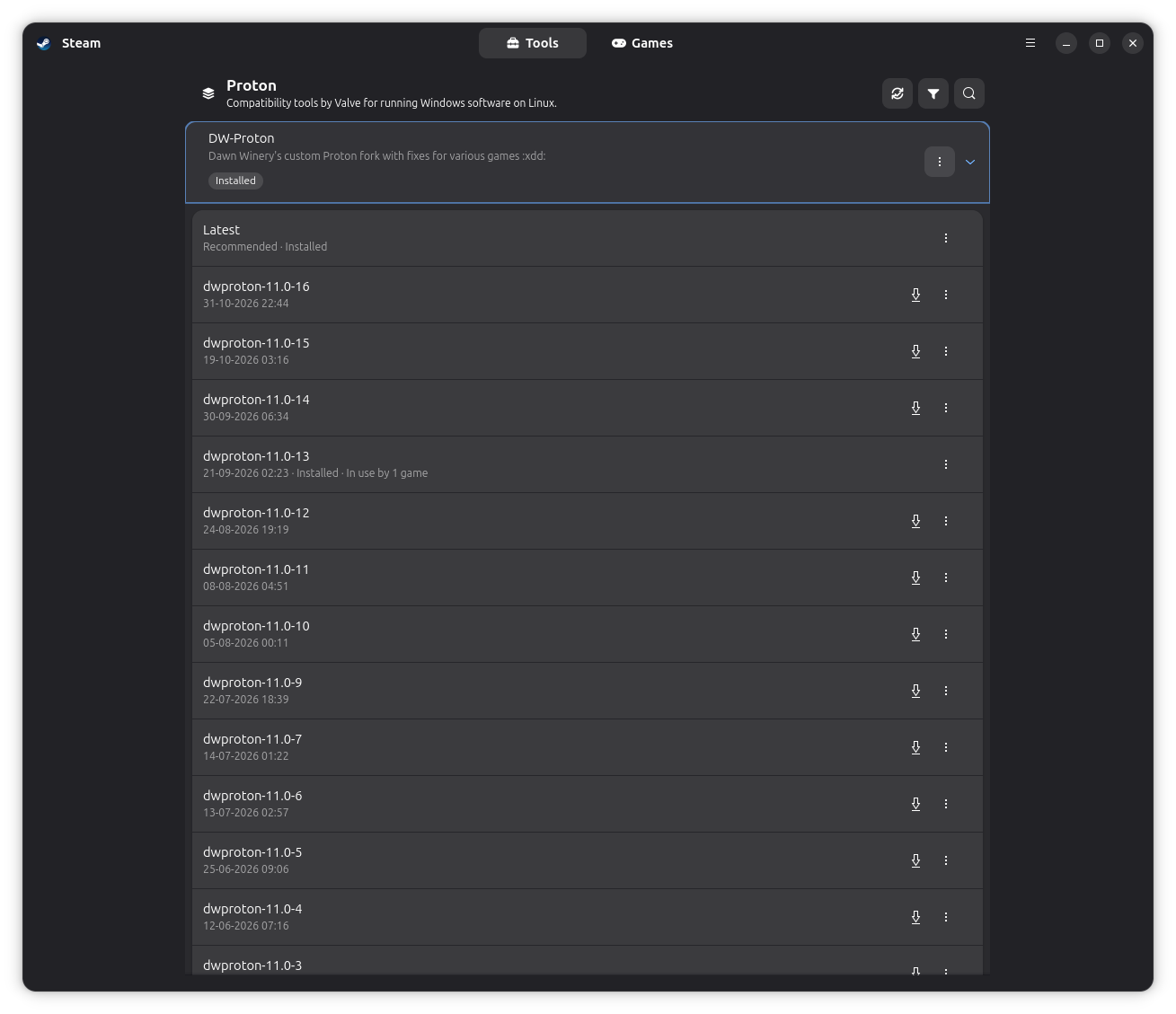
Install DW-Proton 11.0-13
-
Restart Steam after installing DW-Proton if it was running.
-
Confirm DW-Proton appears under the non-Steam game's compatibility options.
Initial Installation
Create Steam Prefix with NIKKE Installer
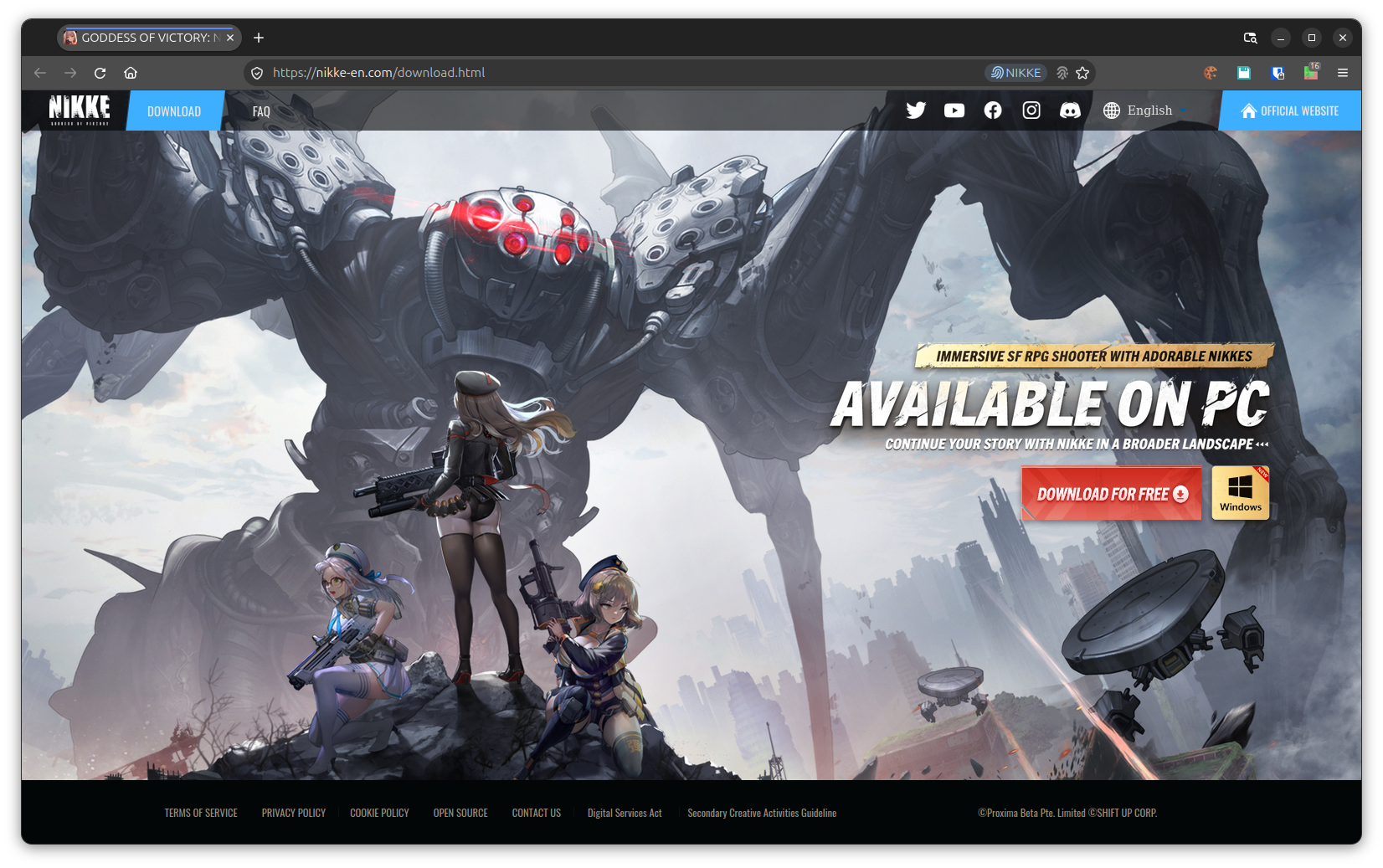
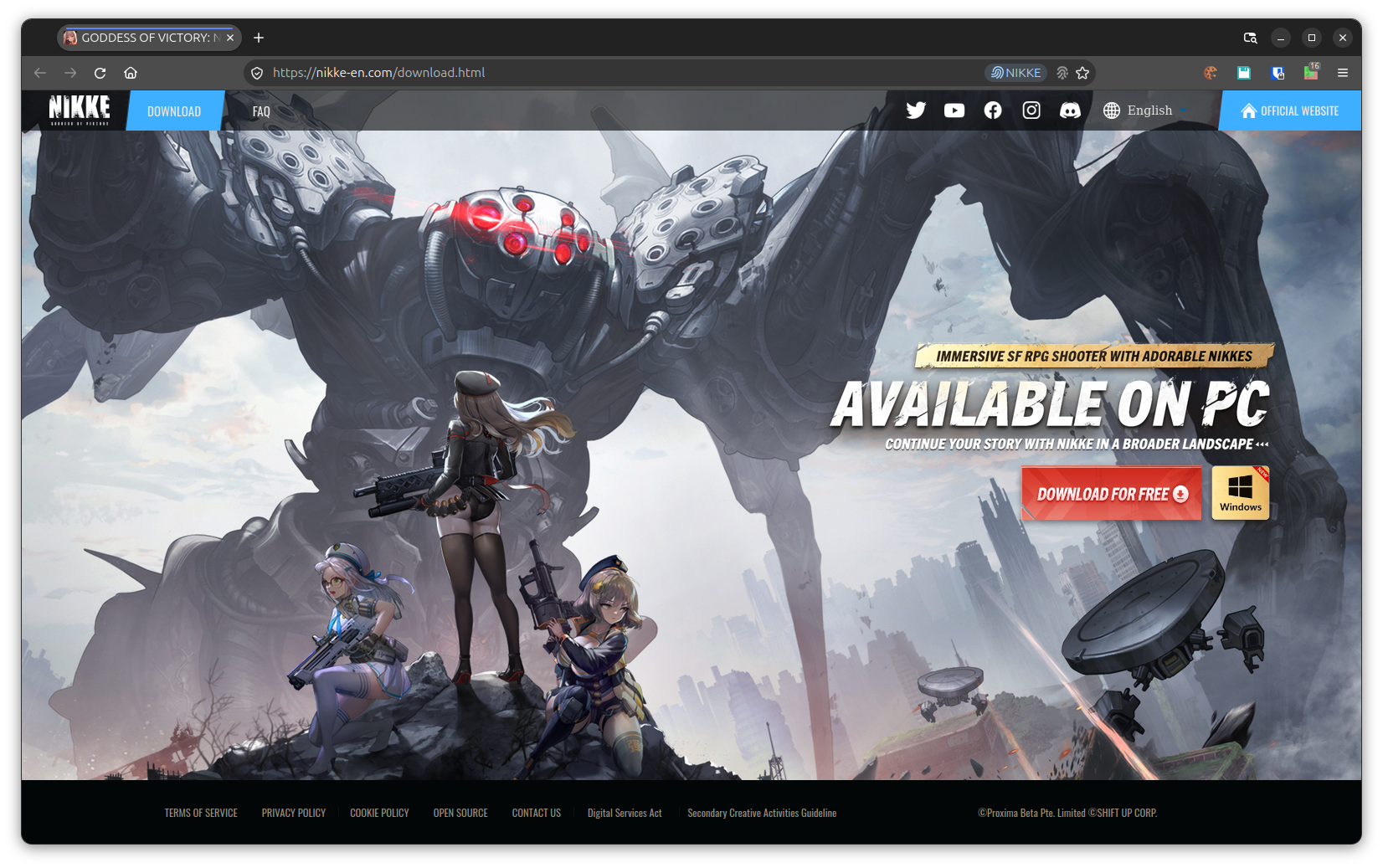
Navigate to https://nikke-en.com/download.html and download the latest installer .EXE.
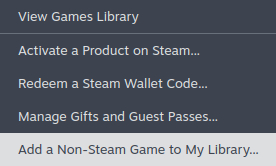
In the Steam top menu-bar, select "Games" > "Add a Non-Steam Game to My Library..."
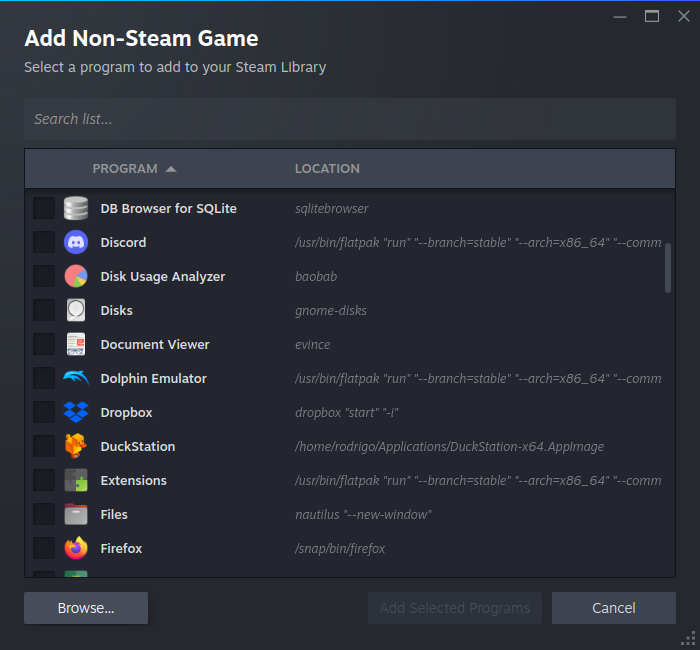
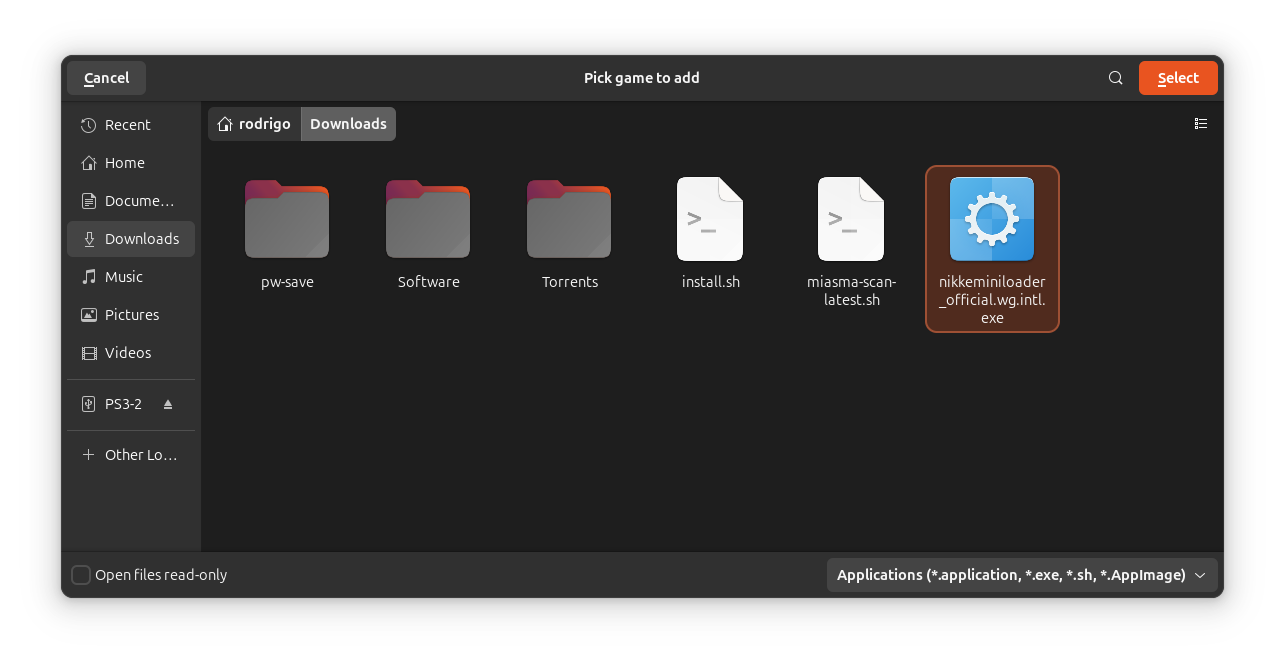
Select Browse, and find the nikkeminiloader_official.wg.intl.exe you just downloaded.
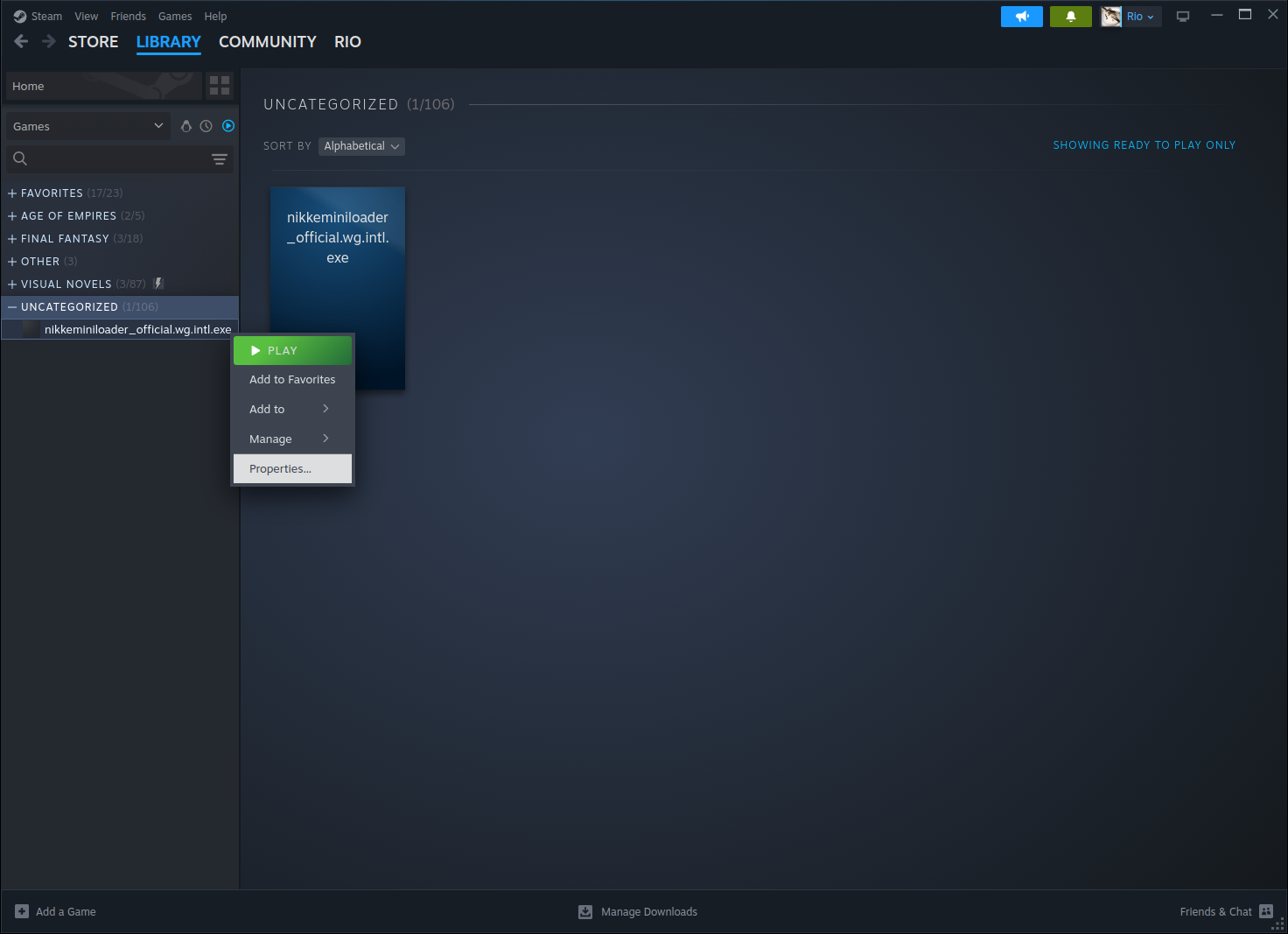
Right-click the new game entry and select Properties.
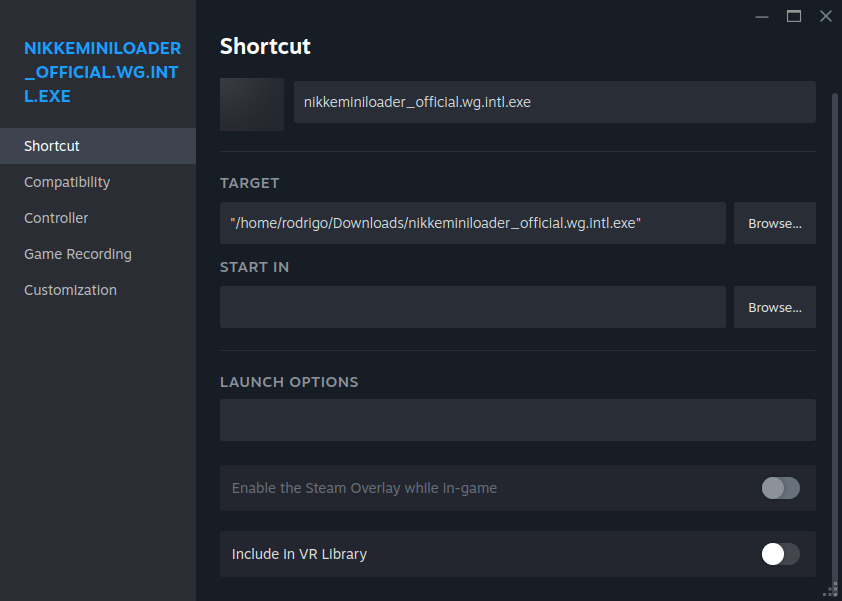
Change the game's title to "NIKKE" or whatever you want.
Ensure the "Start In" field is empty.
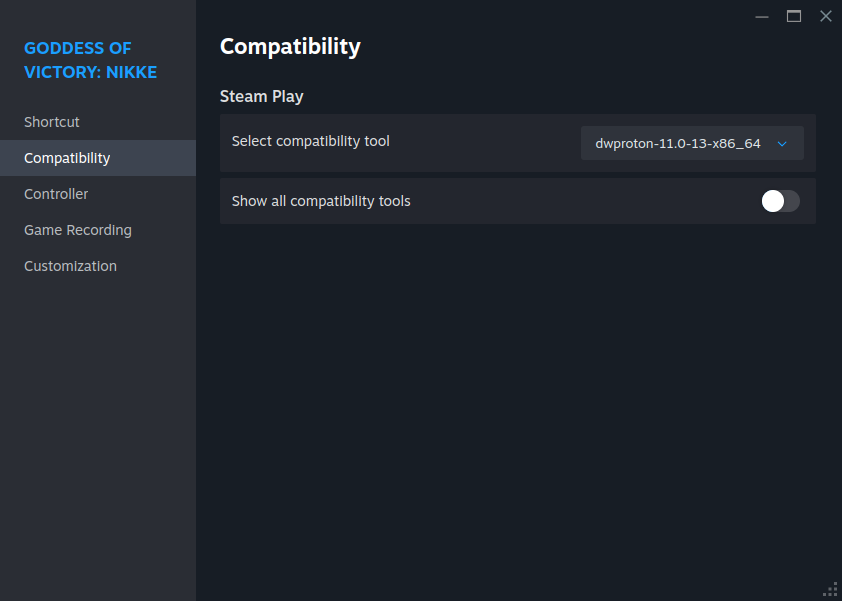
In the Compatibility section, ensure dwproton-11.0-13-x86_64 is selected.
NOTE: Using DW-Proton Latest is a bad idea, since an incoming update can break your setup. Best practice is to leave the game locked to the last known working version.
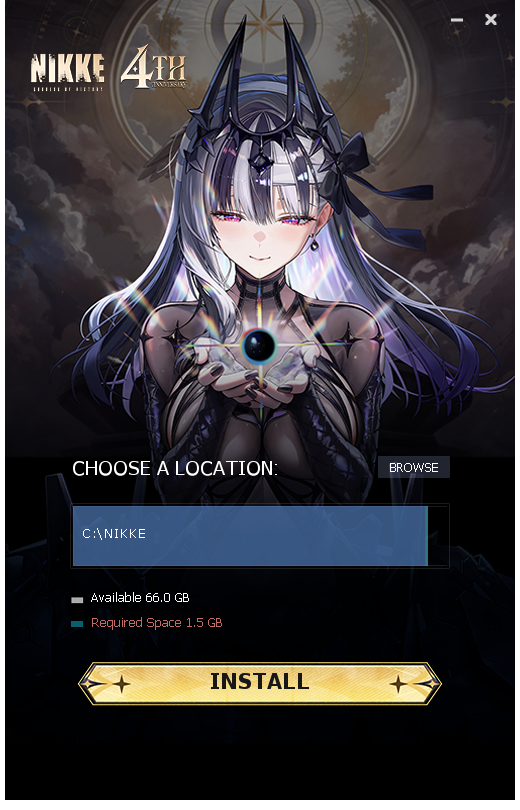
Launch the Installer once so Steam creates the Prefix.
Let it download and install NIKKE.
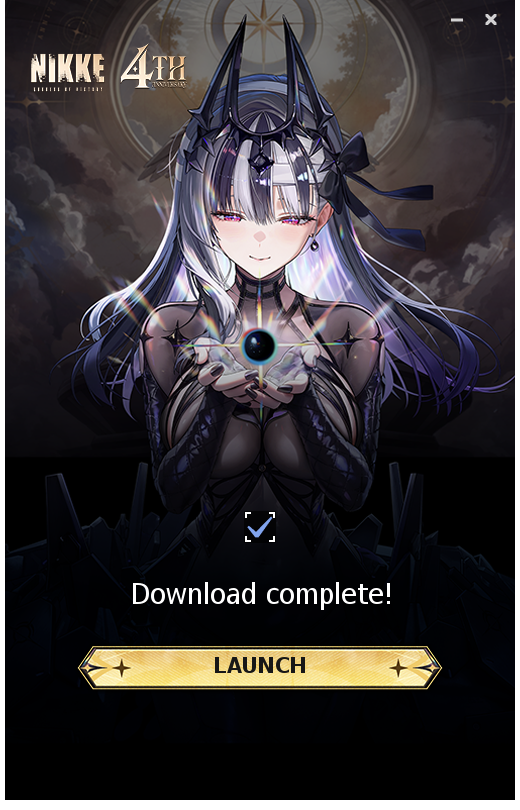
Once it finishes installing, go ahead and LAUNCH.
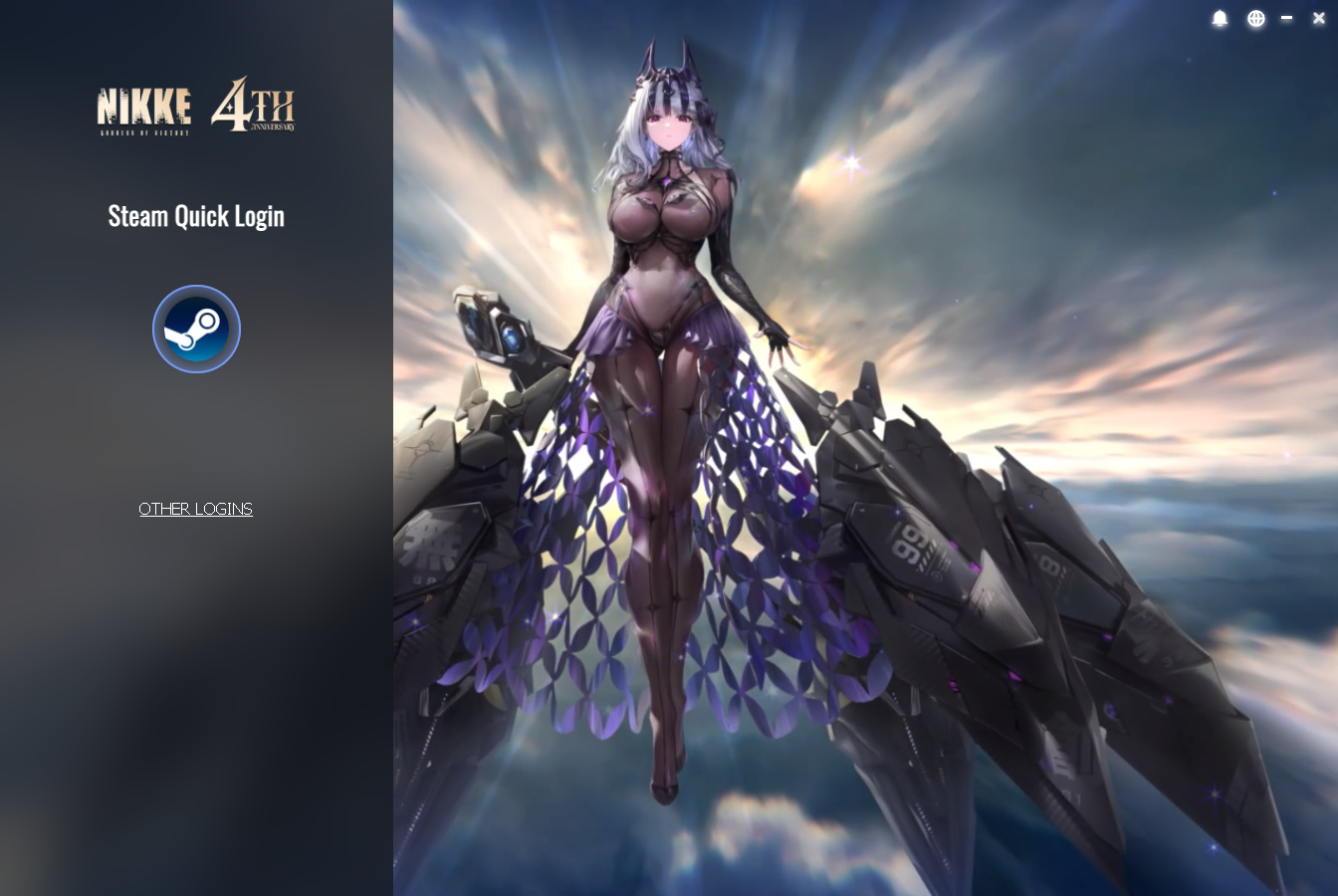
If you can see the Launcher working, then you have succeeded. Before proceeding further though, close the Launcher for now and...
Switch Target to NIKKE Launcher
Find the correct game Prefix under Steam's compatdata directory. Non-Steam games usually use a random numeric folder.
Common Prefix locations:
Native Steam: ~/.steam/root/steamapps/compatdata/
Native, no symlinks: ~/.local/share/Steam/steamapps/compatdata/
Flatpak Steam: ~/.var/app/com.valvesoftware.Steam/data/Steam/steamapps/compatdata/
Snap Steam: ~/snap/steam/common/.steam/steam/steamapps/compatdata/
Other Steam library: <library-path>/steamapps/compatdata/
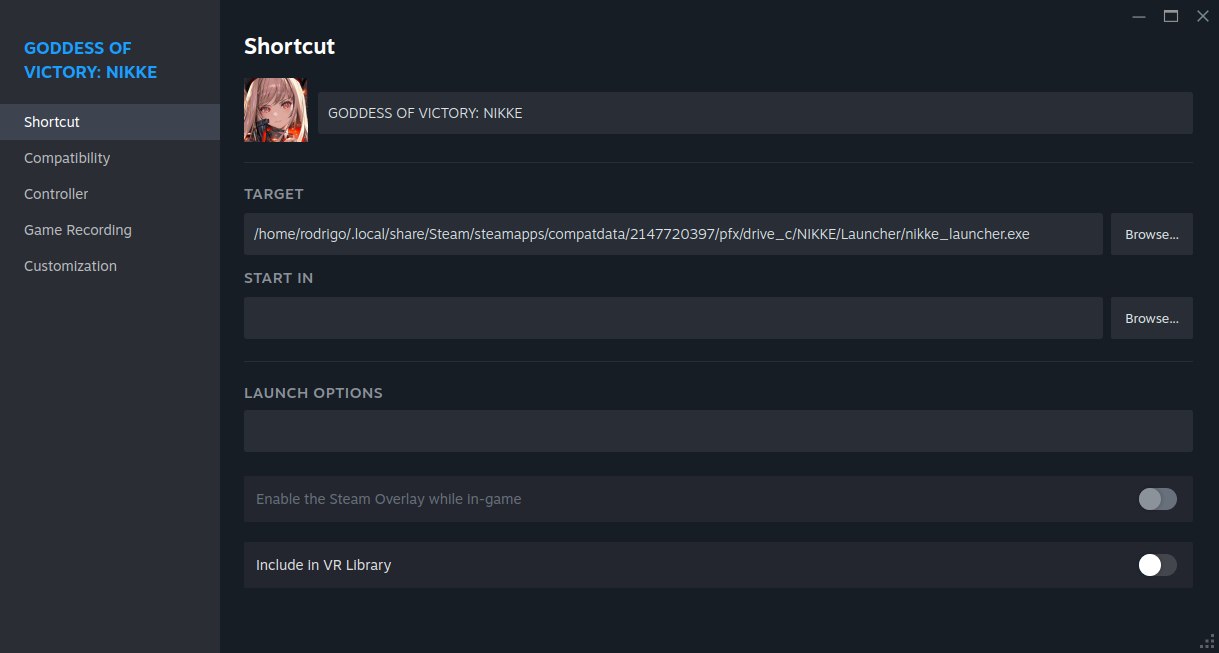
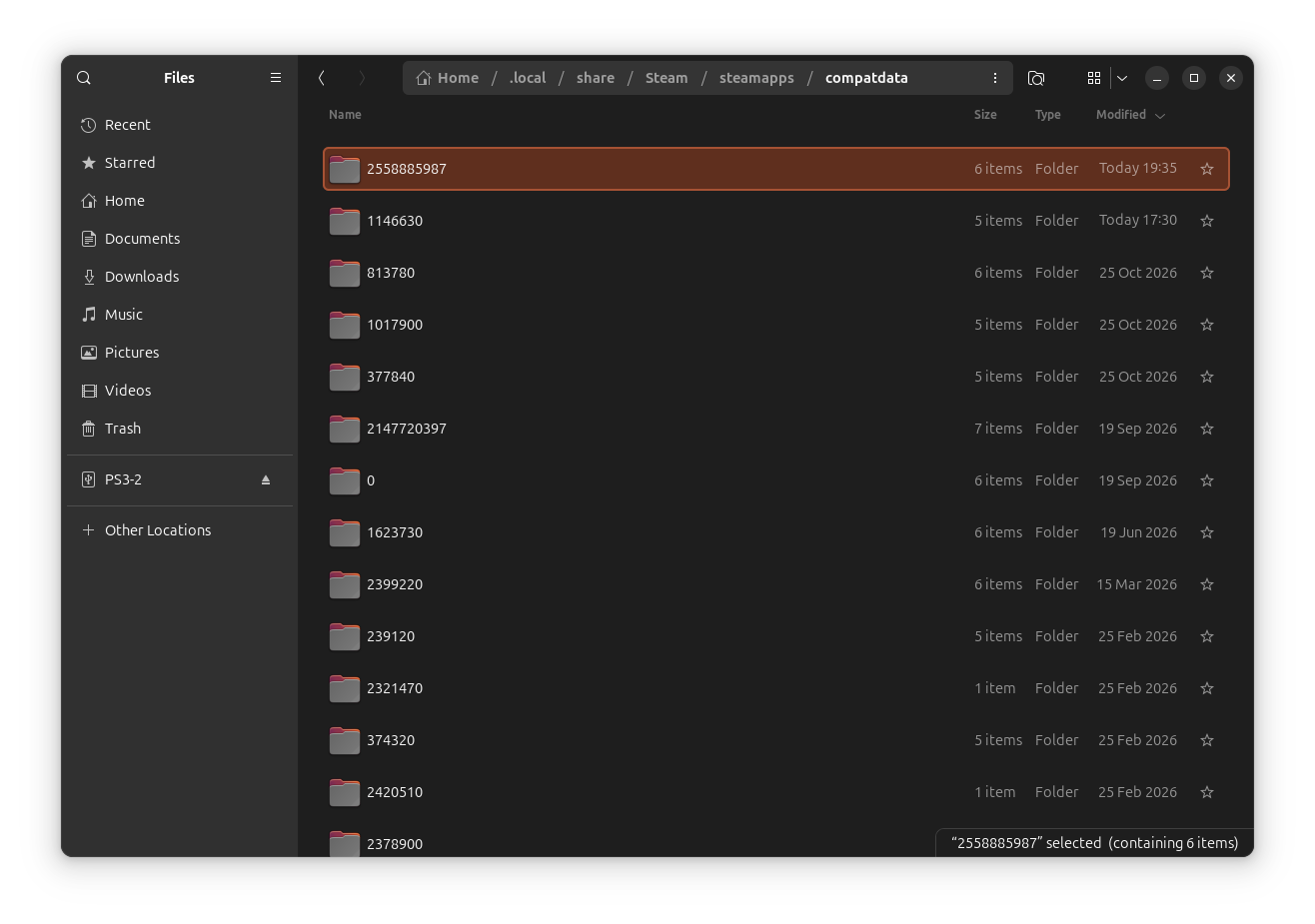
NOTE: Your Prefix folder will obviously not be 2558885987 or 2147720397; these are random folder names generated by Steam on my system. You need to find your own.
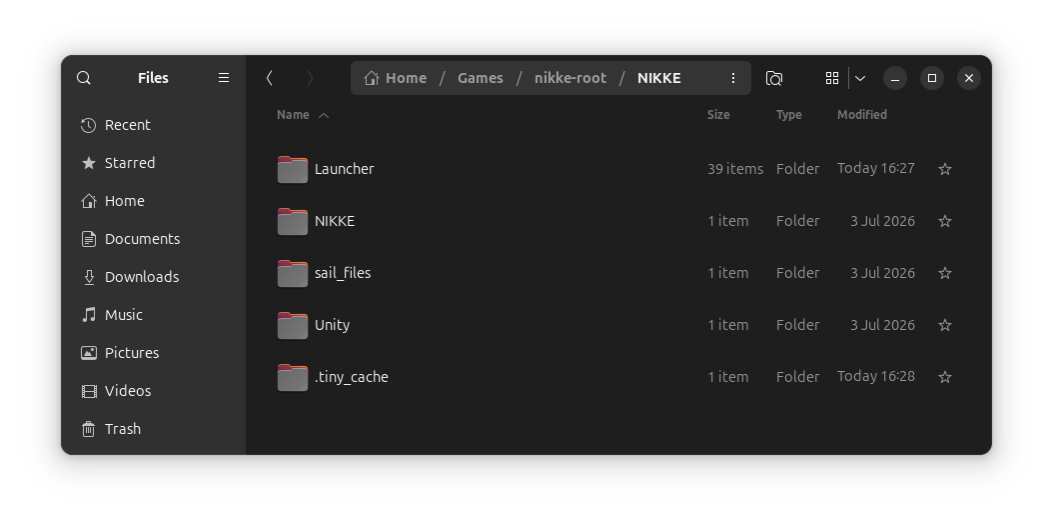
Sort by latest "Modified" time after launching the installer to identify the new non-Steam Prefix. If you suspect you have found it, click inside through pfx > drive_c. If you see NIKKE and inside that the following contents, you found the right one.
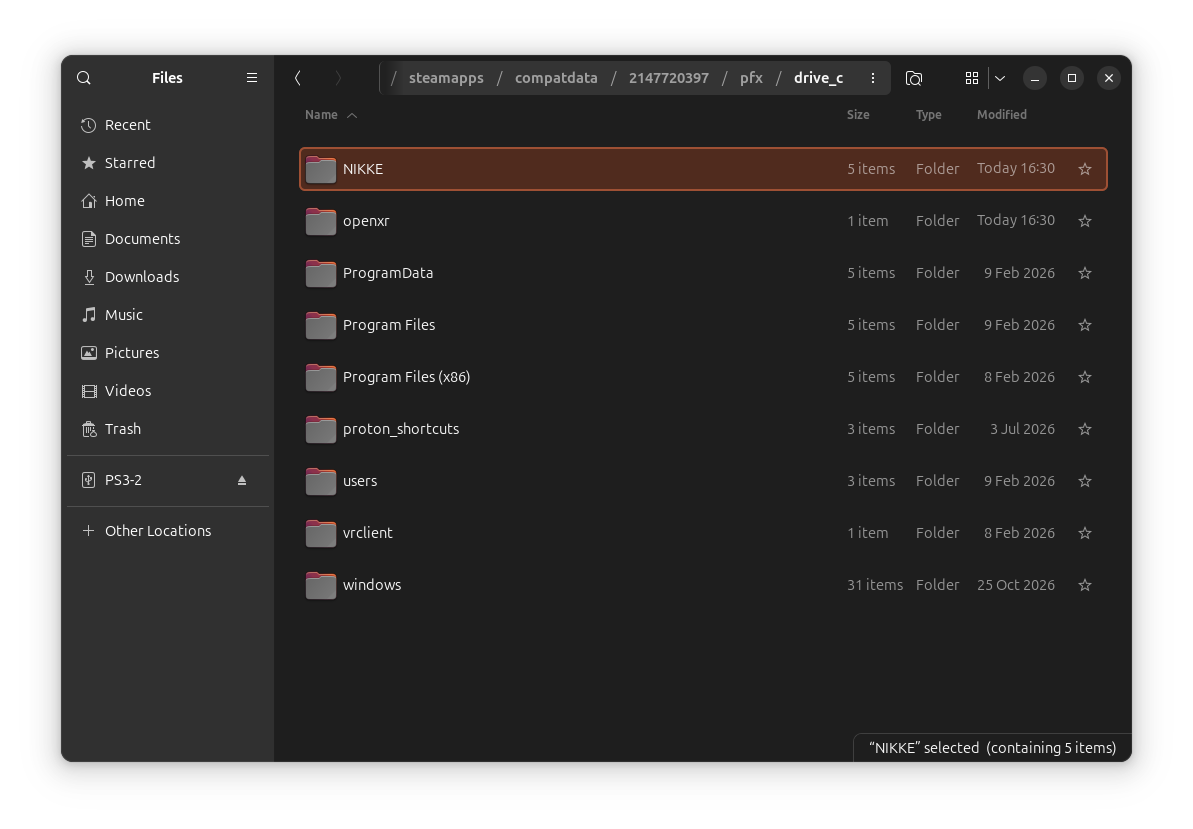
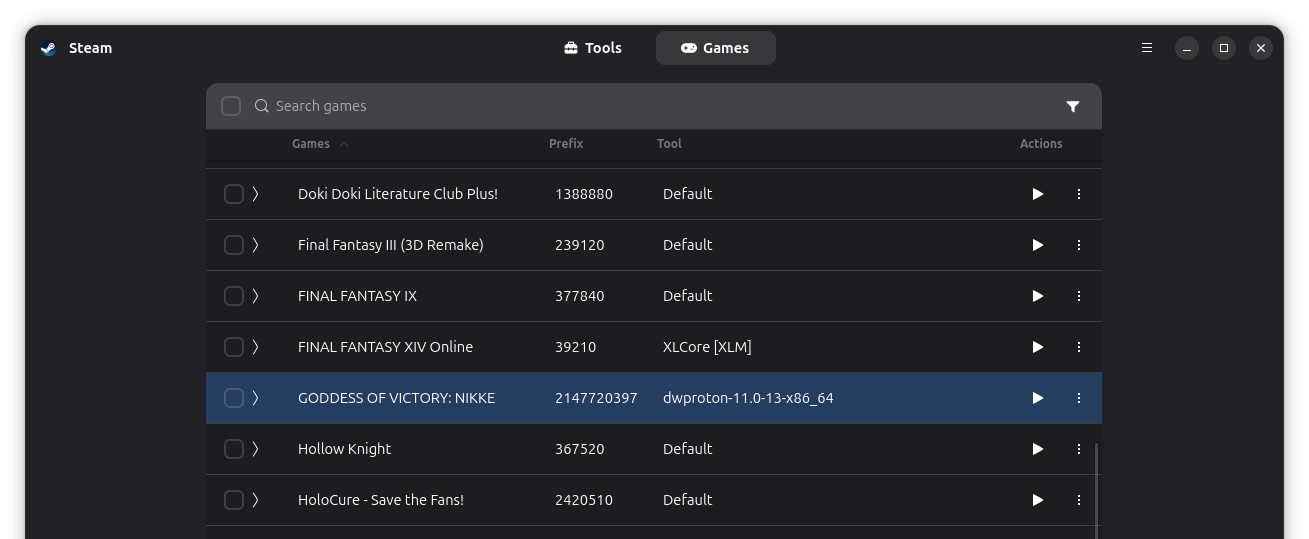
Another way to find your Prefix is to run ProtonPlus again. You should see dwproton-11.0-13-x86_64 in use by NIKKE, and its Prefix.
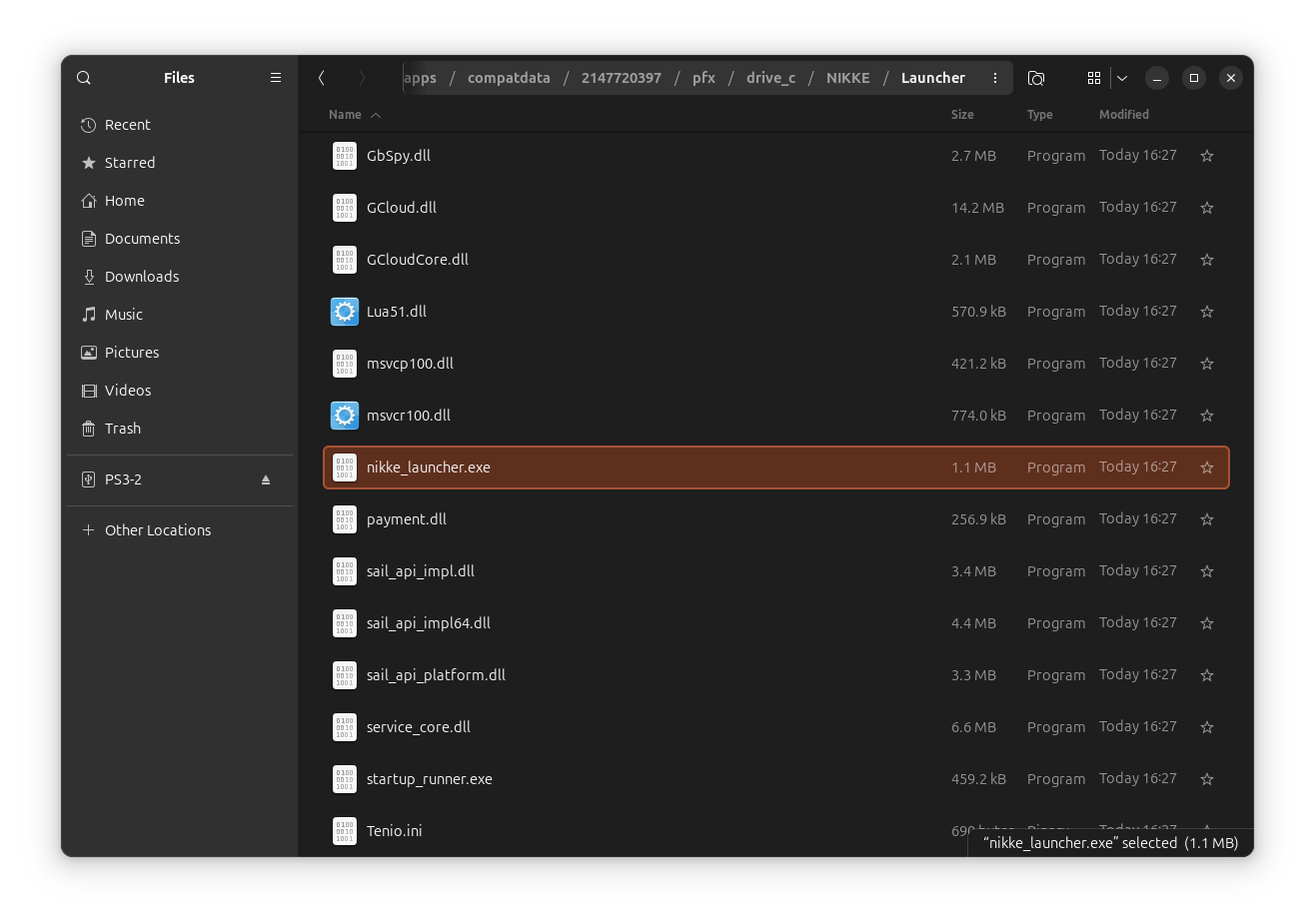
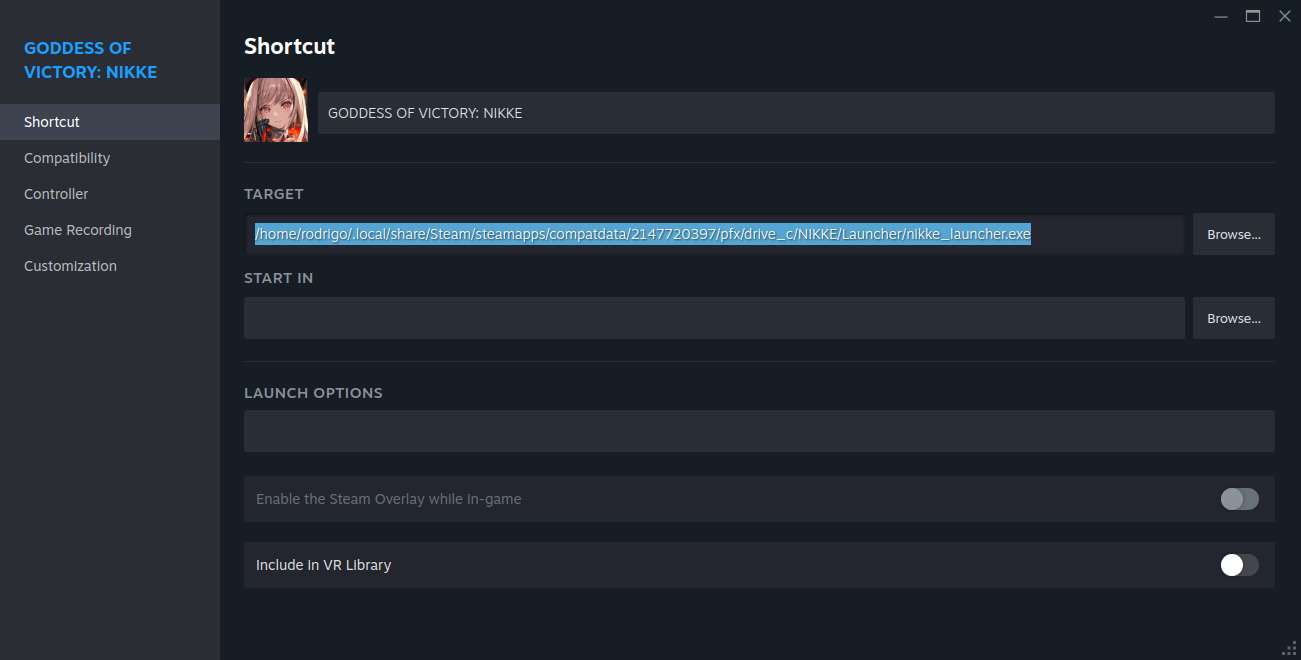
Copy the full absolute path for nikke_launcher.exe (inside Launcher).
Open up your game's Properties on Steam again, and paste in the correct Target to the NIKKE Launcher.
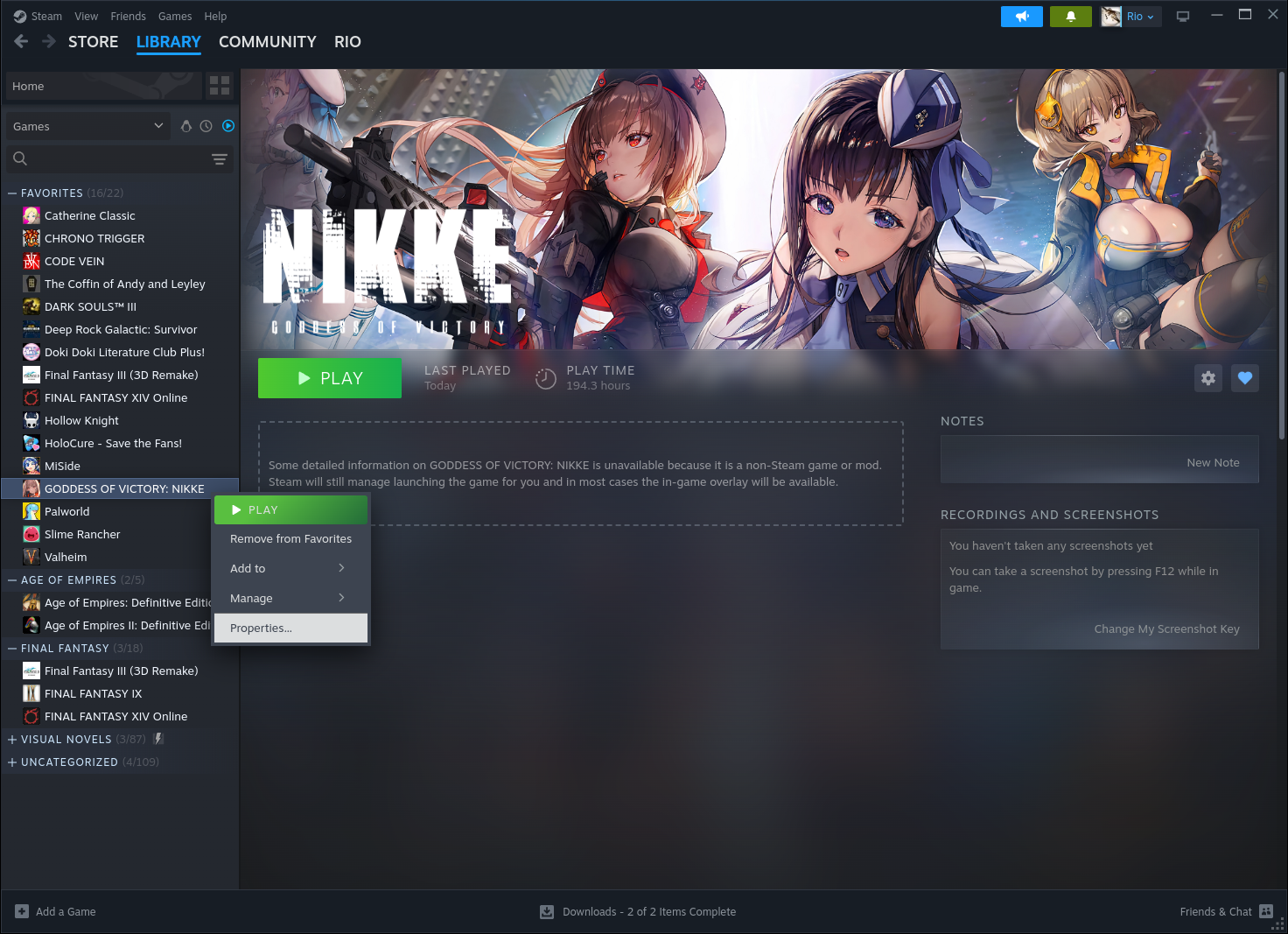
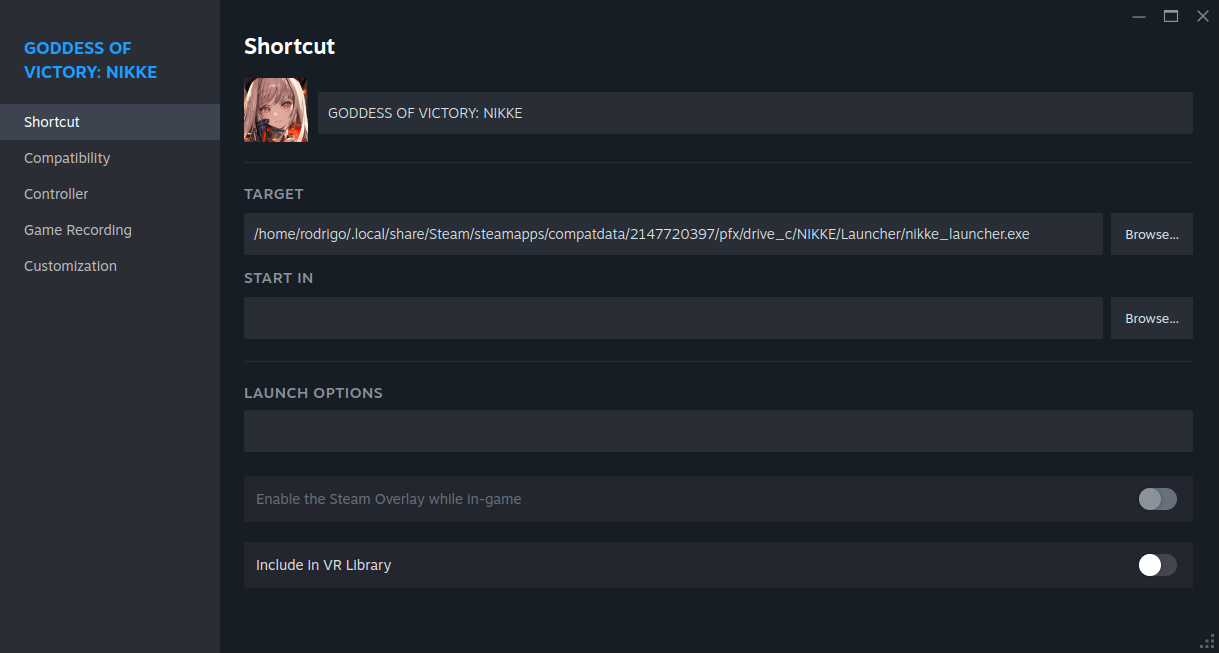
NOTE: Your game thumbnails and banners for NIKKE will not look like mine; I manually added them from SteamGridDB. Go nuts with it :)
Run the game
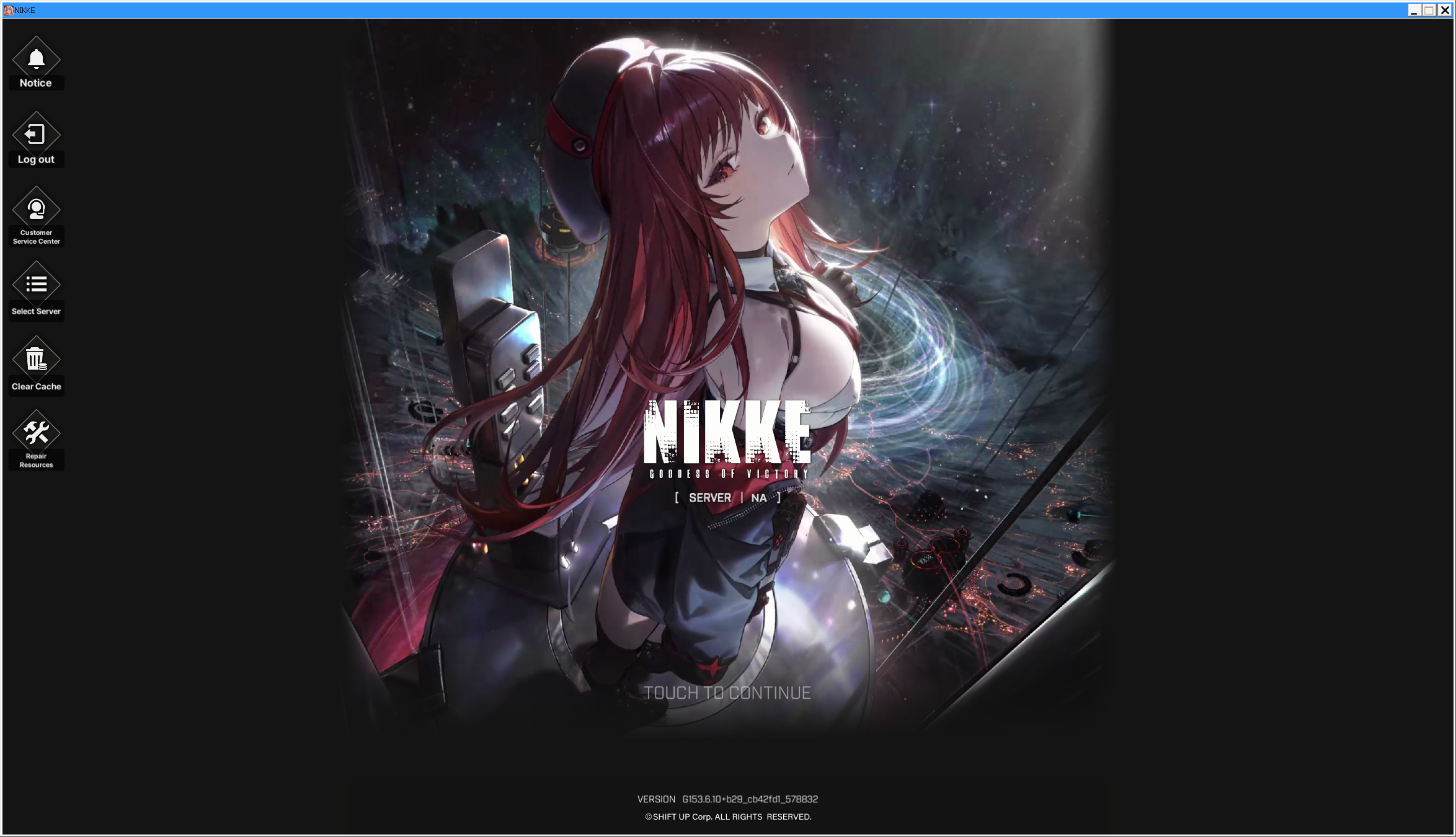
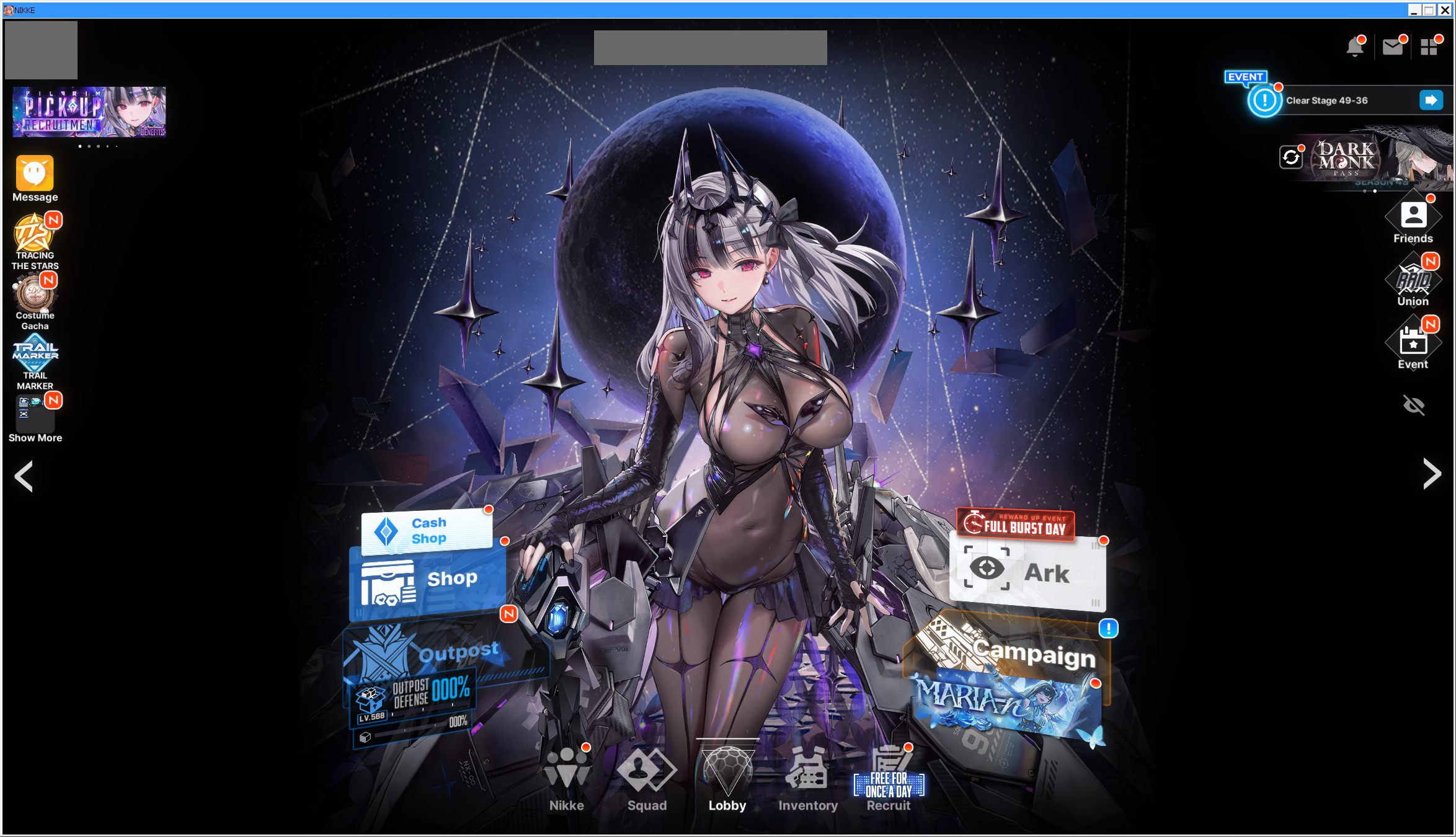
You should now be able hit "PLAY" in Steam and have the Launcher open directly.
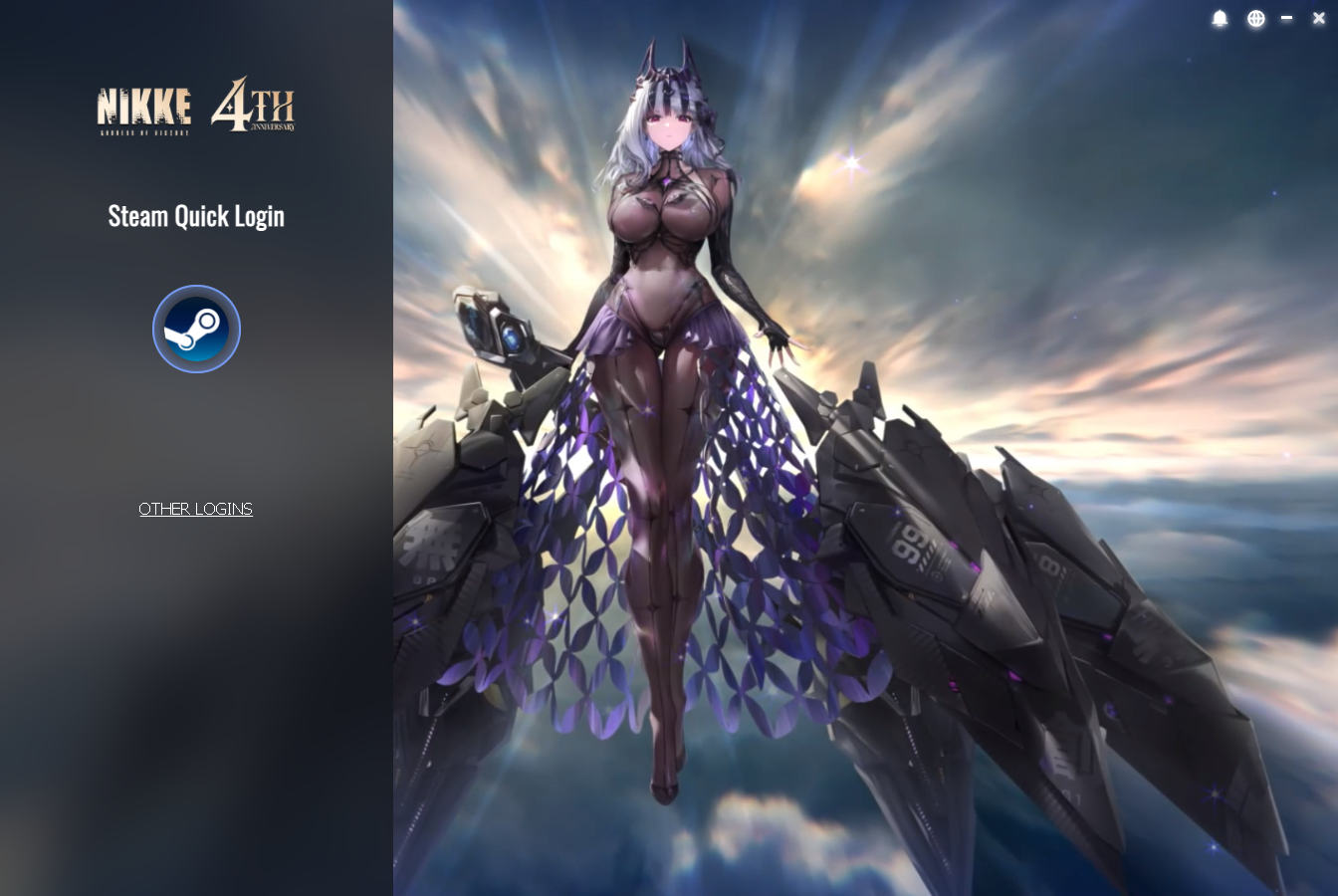
DO NOT CLICK THE STEAM LOGO IN THE NIKKE LAUNCHER
It is a remnant of other games from Level Infinite that have Steam integration, and they must have recycled the code from those for this Launcher. Anyways, it doesn't work and will create a mess.
Just click "OTHER LOGINS".
NOTE: Don't bother with the "Stay logged in" option; it doesn't work on Linux.
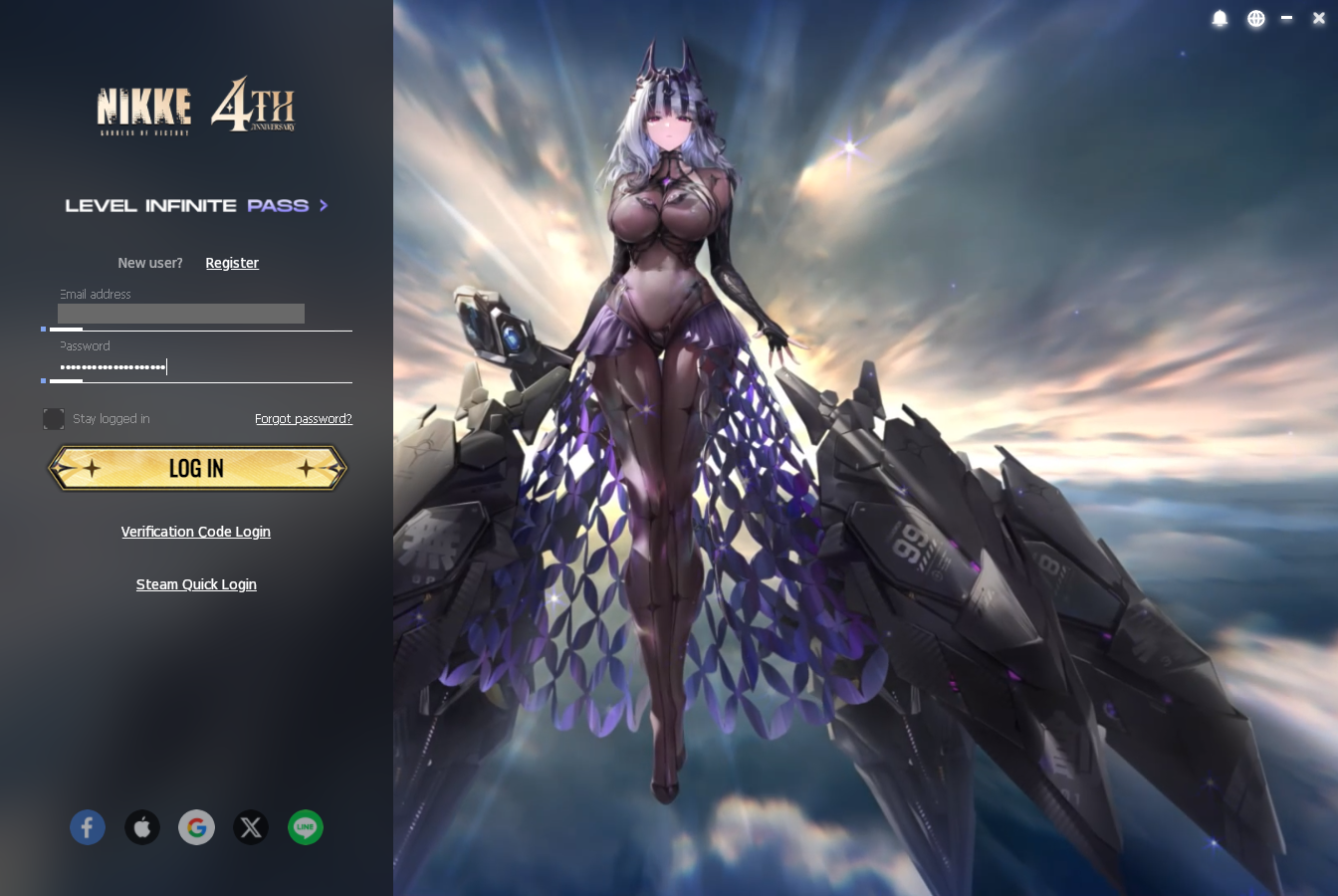
Solve the CAPTCHA, and you should be good to go.
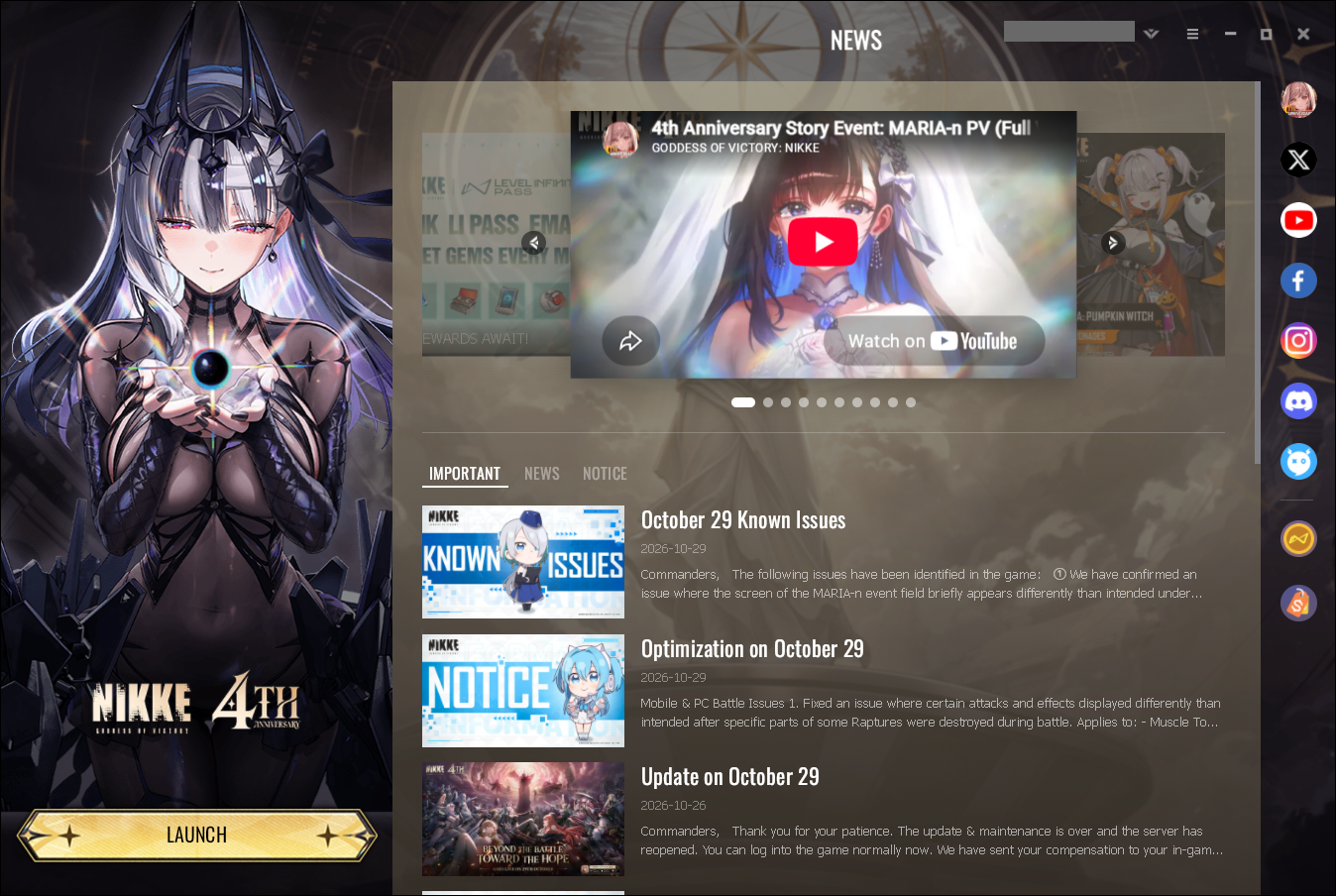
임무 완료!! Enjoy, and may your pulls be blessed with many, many Pilgies ^^
Bonus: Getting Window Focus to work properly
On these later versions of DW-Proton, window focus is handled differently. NIKKE relies on window focus for at least 2 features that I'm aware of:
-
Can use the "mute game while window not in focus" option.
-
Can get around the game trying to hide your cursor, by clicking in and out before combat starts.
Simply clicking outside the main game window into GNOME desktop no longer "unfocuses" the game. The solution is to keep the NIKKE Launcher window up, and by clicking on the Launcher, the game recognizes it has lost focus.
Updating
Last validated: 2026 November 1st
MARIA-n 4th Anniversary Event
I'll continue updating this section every time I successfully update on my own system.
Prerequisite: Update DW-Proton to 11.0-13
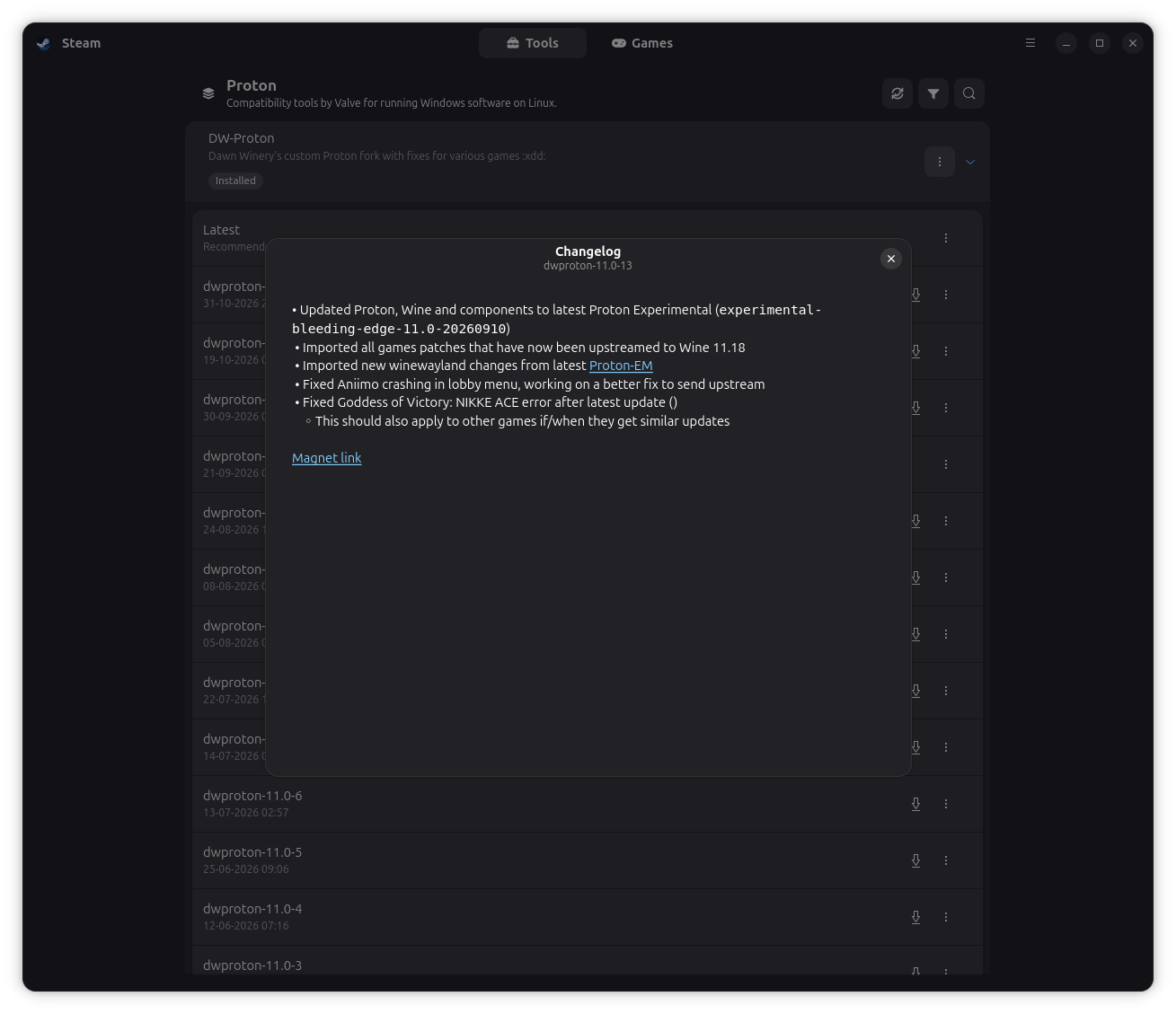
As of September 2026, NIKKE changed the ACE Anti-Cheat version so all previous Proton versions will trigger an ACE error.
With Steam not running, use ProtonPlus to download and install dwproton-11.0-13.
Preferred Update Method: Natively with NIKKE Launcher
On later DW-Proton versions, other users have reported that just running the game normally and letting the Launcher update itself works.
It has never worked for me, so instead I use:
Backup Method: Overwrite Install with new Installer
Navigate to https://nikke-en.com/download.html and download the latest installer .EXE.
Back in Steam, in NIKKE's Properties > Shortcut section, copy out the current Target path you have for the game (nikke_launcher.exe), and save it in a text editor (you will need to restore it later).
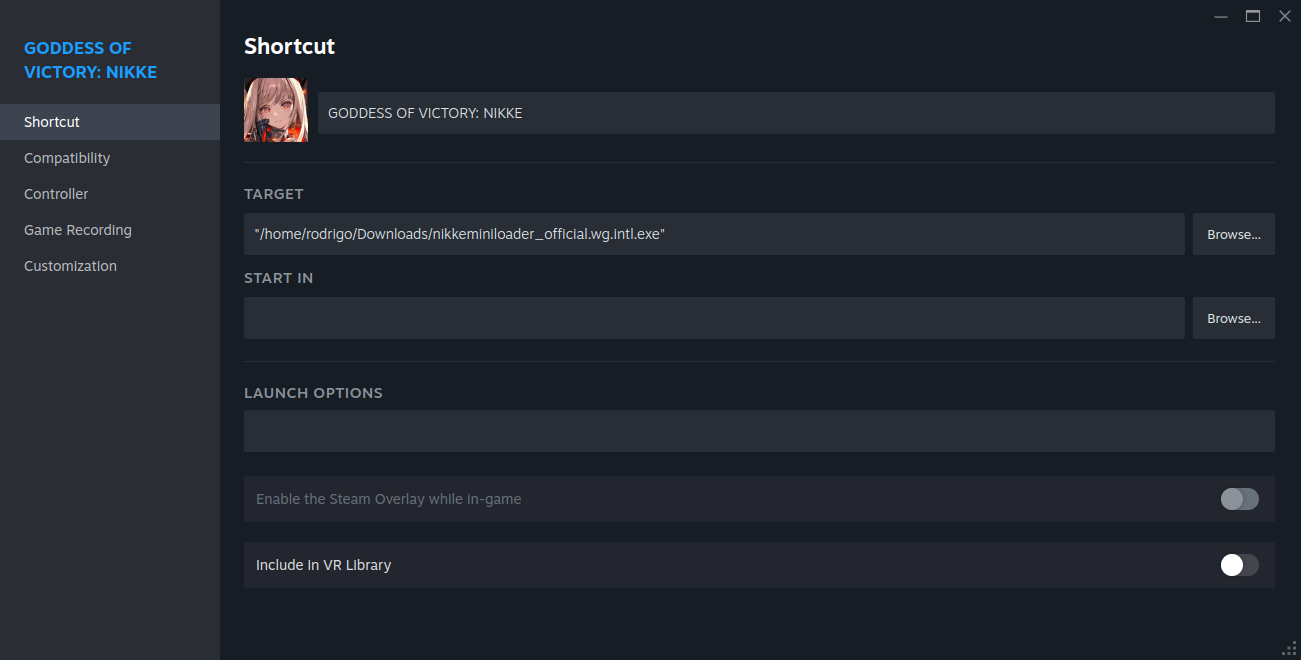
Browse for the new game installer you downloaded, and set it as the new Target.
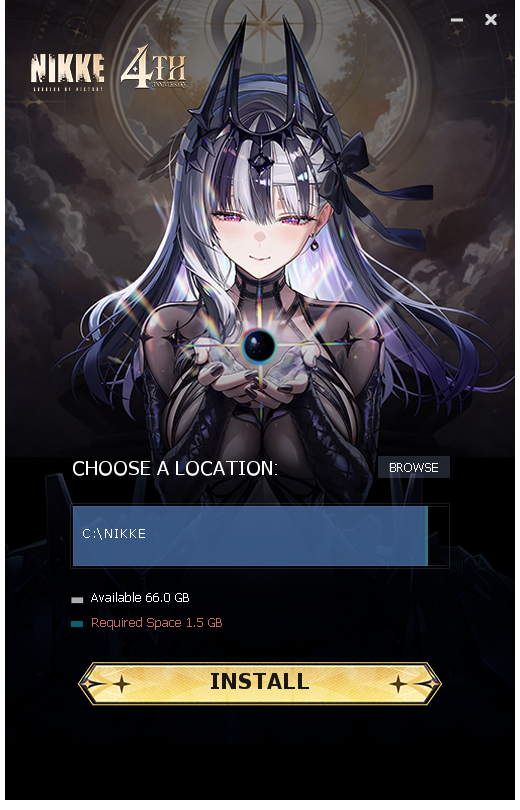
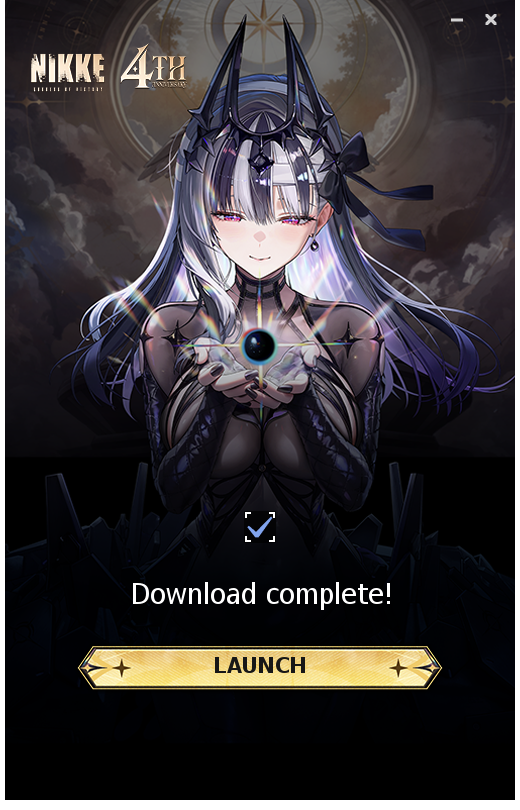
Run the game. You should be greeted with the Installer program, which is smart enough to update your installation in-place. Click "INSTALL" and wait for the download and install to finish. Once you see the "Download complete!" message, DO NOT CLICK "LAUNCH". Keep this window open.
We should verify that the update actually occured successfully. There is a known problem where occasionally, updater fails to overwrite game files correctly.
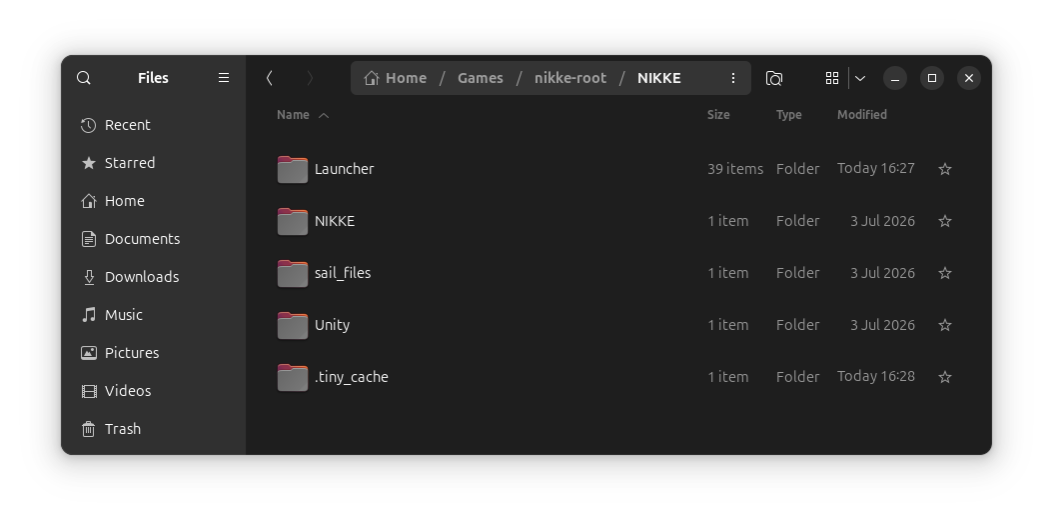
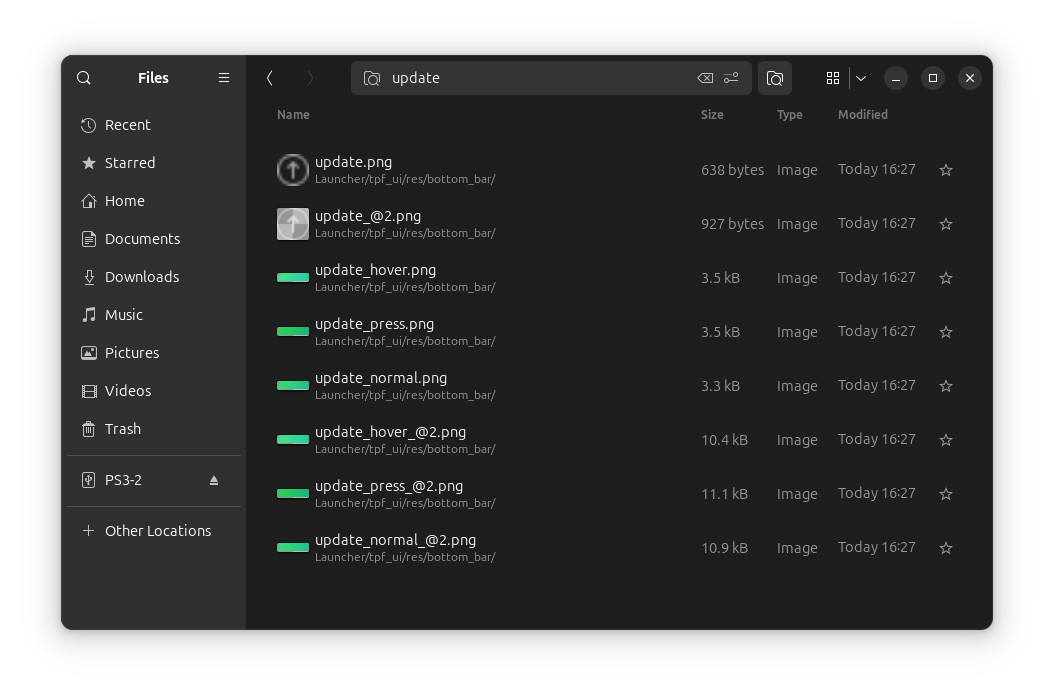
In your File Explorer, navigate to NIKKE's game root folder within its prefix, and search for the term update or update_files.
If you see a folder named update_files anywhere, then the update failed to overwrite files correctly, and you need to do so manually. Basically, cut (ctrl+x) all of the contents of update_files and paste them one level up, merging and overwriting everything it prompts. Remember to delete the update_files folder once it is empty, so it doesn't trick you next time there is an update.
If you don't see any update_files folder, then you are fine.
If the update succeeded (no update_files folder like above) then go ahead and click "LAUNCH" back in the Installer window.
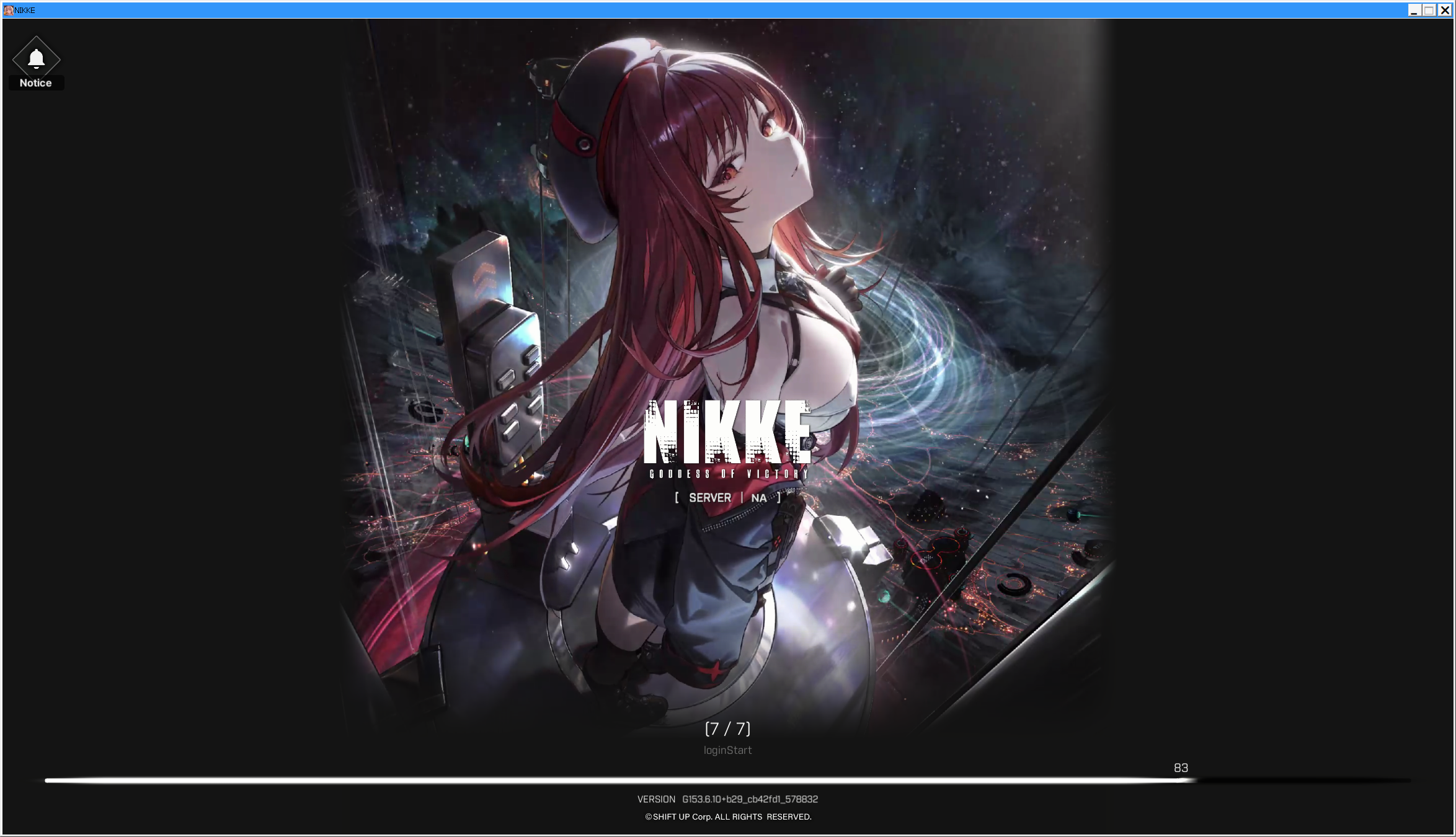
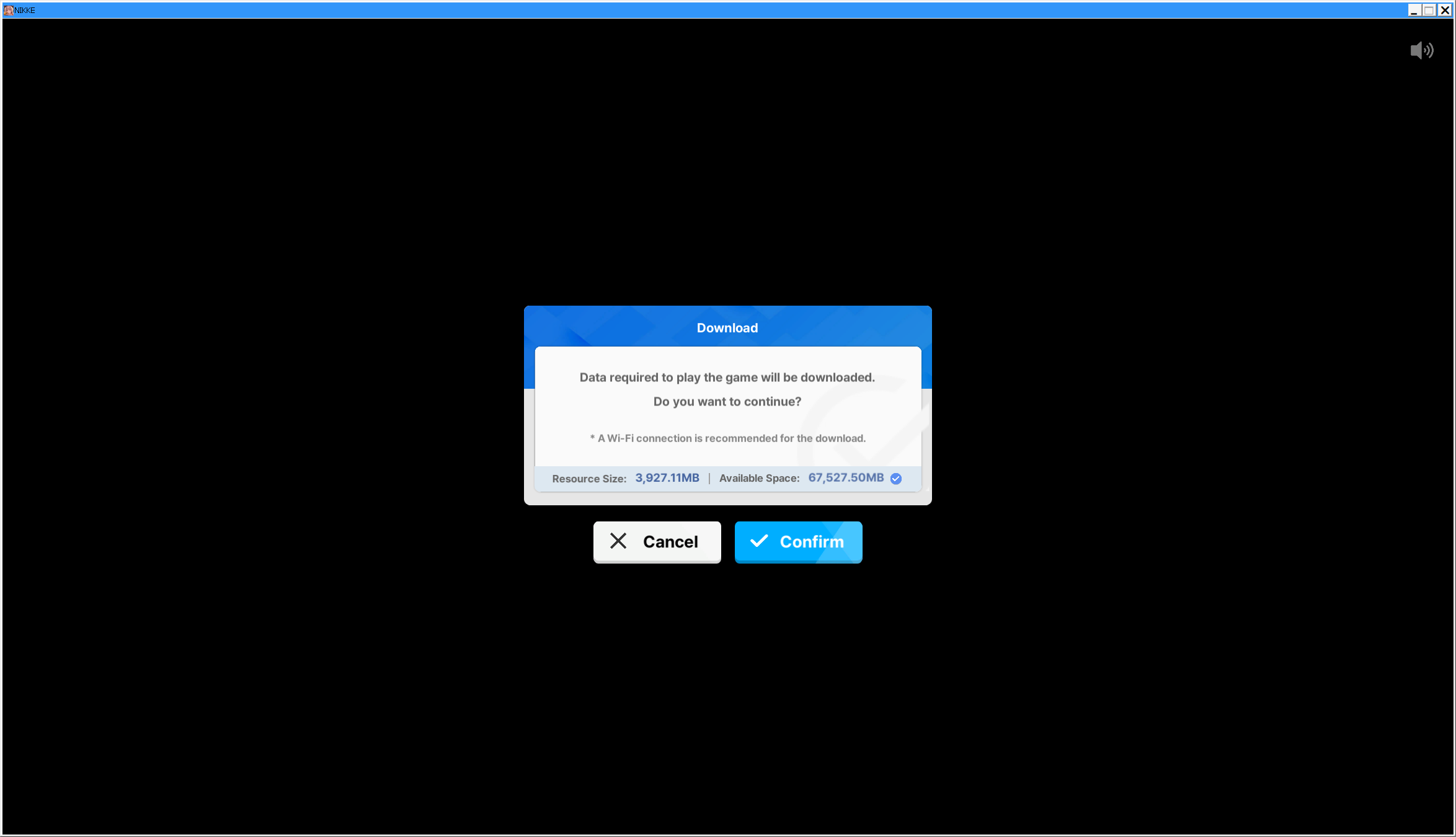
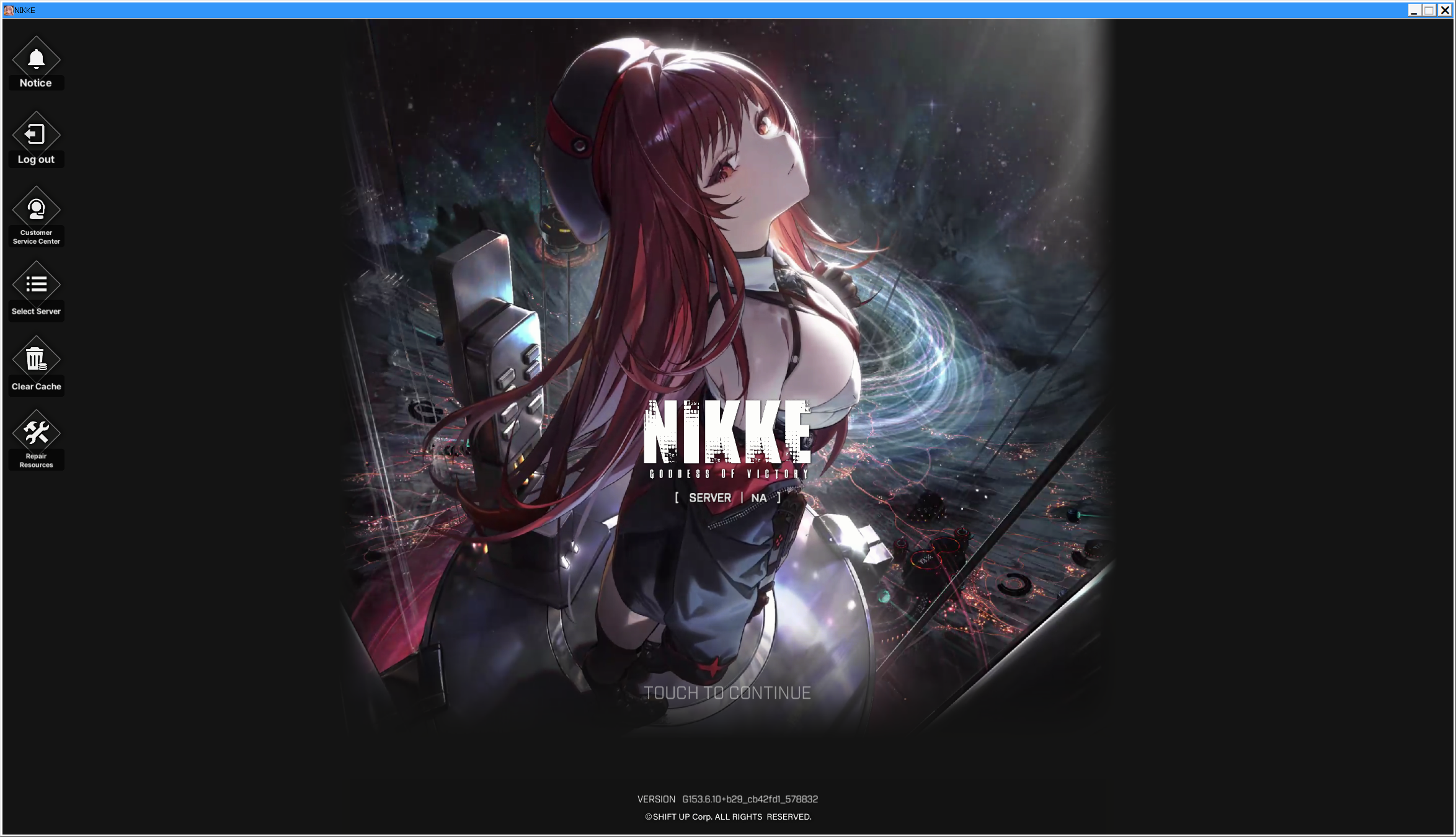
An up-to-date client (as of November 1st, 2026) will be on Version G153.6.10+b29_cb42fd1_578832.
Run the game once to make sure everything is working properly.
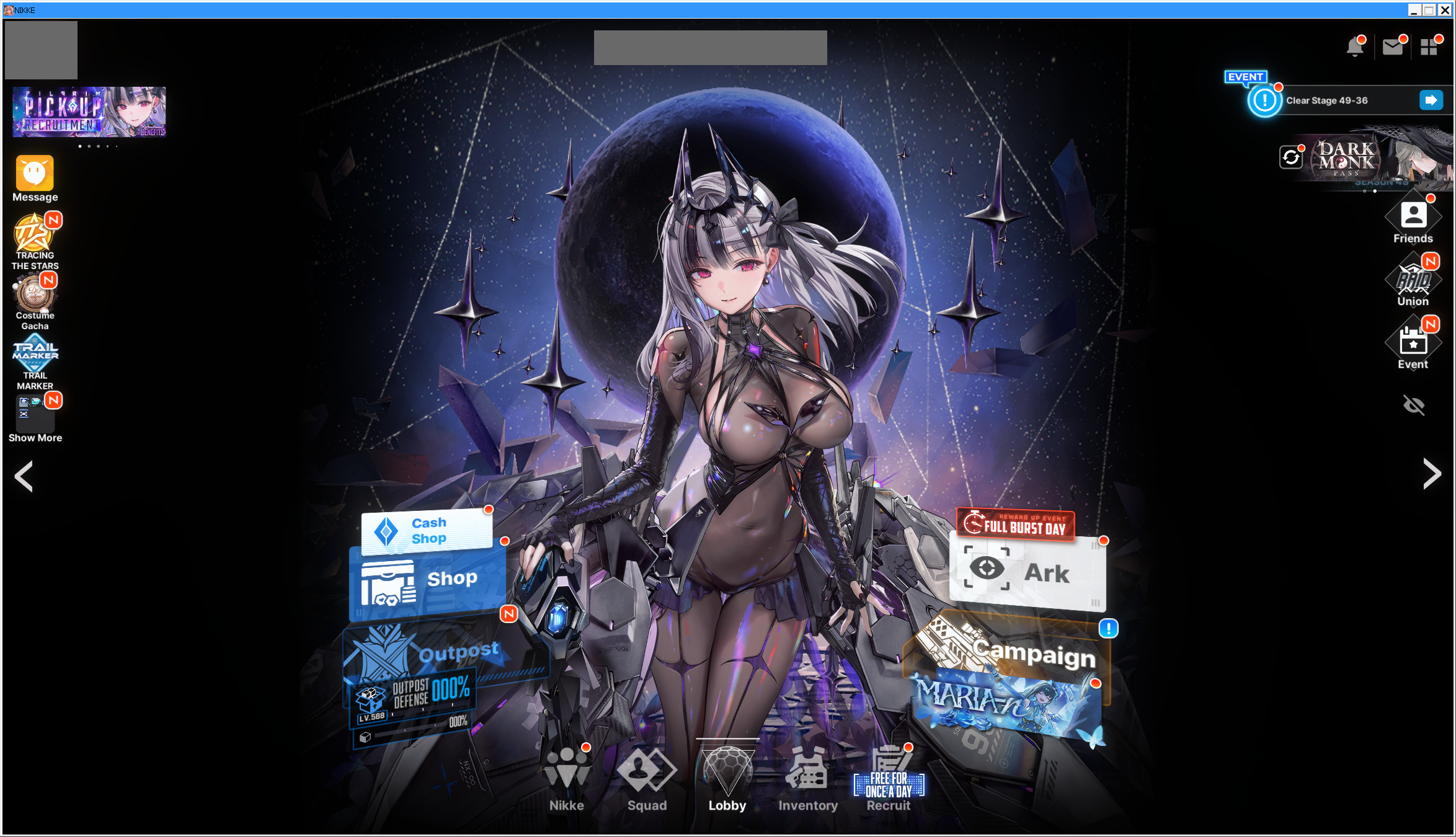
Close the game, and don't forget to restore the original Target path for nikke_launcher.exe you had before.